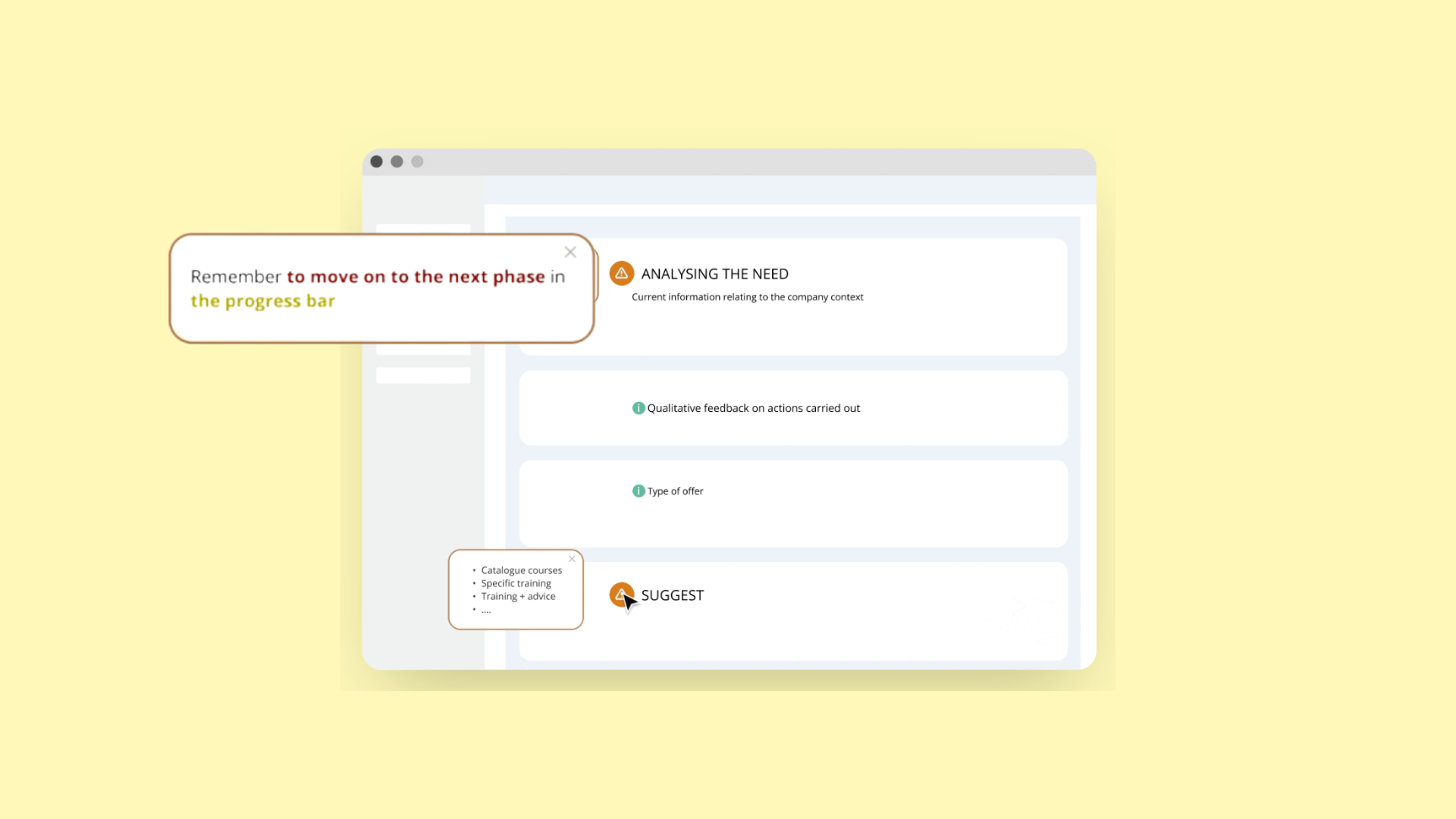
The Tooltips feature is a pop-up used to deploy messages or guides anywhere inside a platform’s interface. It provides specific and timely information to users according to task, page, or user profile (e.g., survey, message, new feature, new guide, announcement). A Tooltip provides contextual information to users as they navigate through a software. A Tooltip can support users in a variety of ways with one objective: to guide the user through a tool.
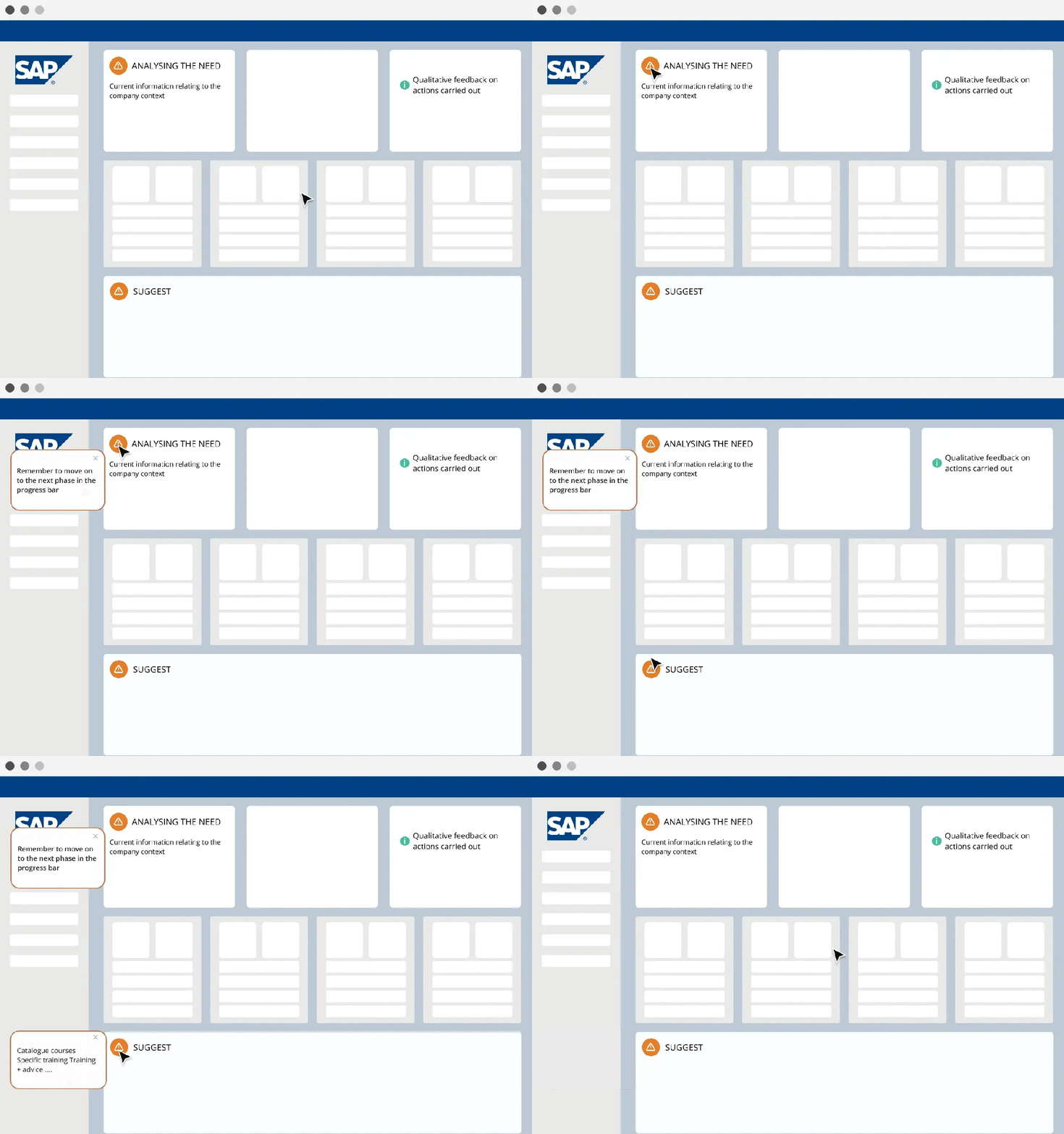
1. What is a Tooltip?
A tooltip is a small, contextual pop-up that appears within a software interface to deliver targeted information to a user at the right moment. Unlike static documentation or external help articles, tooltips surface inside the application itself, exactly where the user needs them.
In the context of digital adoption platforms like Lemon Learning, a tooltip is an interactive overlay that can be triggered by a click, a page load, or a user profile. It can display a short message, surface a guide, validate a form field, or announce a new feature, all without the user leaving the interface.
Tooltips are identified in Lemon Learning by an "i" icon inside a speech bubble, making them instantly recognisable to end users.
2. Why Are Tooltips Important?
Tooltips solve a core problem in enterprise software adoption: users forget what they learned in training, and they rarely open a help center mid-task.
Without in-app guidance:
- Users make data entry errors on critical fields
- Adoption of new features stalls
- Support tickets increase after software updates or rollouts
- Onboarding takes longer than it should
Tooltips address this by delivering just-in-time information, the right message, to the right user, at the right step. This reduces friction without interrupting the user's workflow.
For IT, HR, and ops teams rolling out tools like Salesforce, SAP, Microsoft 365, or custom internal apps, tooltips are one of the fastest ways to improve adoption without rebuilding training programs.
3. How Do Tooltips Work?
In Lemon Learning, tooltips are created and managed through a no-code editor, no developer involvement required. Here's how the process works:
- An editor (L&D, IT, HR, ops) opens the Lemon Learning editor directly inside the target application.
- They select any element within the interface, a button, field, menu, or section, as the tooltip anchor.
- They configure the tooltip: content, position, trigger (click, page load, user profile), and type (message, guide launcher, field validator).
- The tooltip is published and becomes visible to targeted users inside the software.
Tooltips can be scoped by page or section, appearing only on relevant screens. They can also be tied to a specific task or workflow, triggered at precise steps, or targeted by user profile or role so only the right teams see them.
4. What Are the Different Types of Tooltips?
Informational
Adds context to a field or section
"This field determines invoice routing. Check with your finance team before editing."
Validation
Flags mandatory fields or expected formats
"Required. Enter the client's VAT number in XX 999999999 format."
Guide launcher
Opens a step-by-step interactive guide
"New to this module? Click to launch a 3-step walkthrough."
Announcement
Highlights new features or changes
"We've updated this dashboard. Here's what's changed."
Survey / Feedback
Collects user input in context
"How easy was this task to complete?"
5. What Are the Main Benefits of Tooltips?
- Contextual, not generic. Information is tied to a specific field, page, or user, not a generic FAQ article.
- No-code deployment. Editors create and update tooltips without IT tickets or developer time.
- Role-based targeting. Different users see different guidance based on their profile, team, or workflow.
- Flexible placement. Tooltips can be positioned anywhere inside any interface, regardless of the underlying software.
- Supports any stage. Useful at onboarding, post-update rollouts, compliance moments, and ongoing reinforcement.
- Reduces support volume. Self-serve answers at the point of need mean fewer tickets and help desk requests.
6. Real-World Use Cases
CRM rollout (e.g. Salesforce, HubSpot)
Sales reps see tooltips on key fields during lead qualification, explaining what data is expected and why it matters for pipeline reporting. Reduces bad data at the source.
ERP go-live (e.g. SAP, Oracle)
Finance teams receive validation tooltips on critical input fields during month-end close. Errors caught in real time, not after submission.
HRIS self-service (e.g. Workday, SuccessFactors)
Employees updating their personal information see tooltips that explain mandatory fields and what HR uses the data for. Fewer incomplete submissions.
Microsoft 365 adoption
A tooltip on the SharePoint homepage guides employees to the correct document library for their department, reducing misfiled content and search friction.
Compliance training reinforcement
A tooltip on a data entry screen reminds users of GDPR or data classification rules at the exact moment they're handling sensitive information.
FAQs